

MCP Servers
What it does
Section titled “What it does”MCP Servers is where you register Model Context Protocol (MCP) servers — the part of Arbitex’s MCP Security channel module that lets you connect external tool servers to agents. For each server you set a name, endpoint, transport, and an optional auth token, then author which of its tools are explicitly allowed or denied.
Configure in the UI
Section titled “Configure in the UI”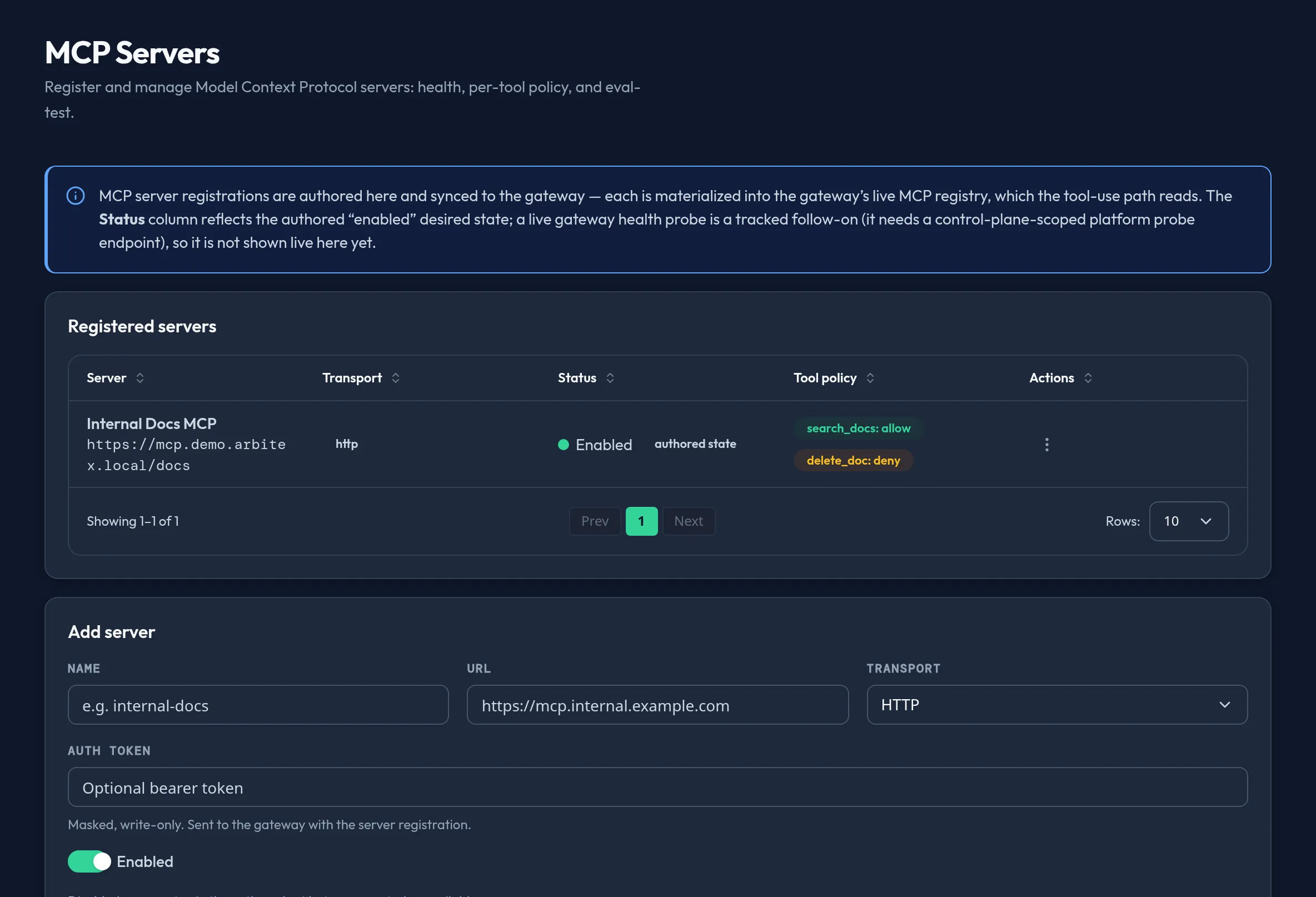
-
Open Models & Routing → MCP Servers and select Add server.
-
Fill in Name, URL, and Transport (
stdio,HTTP, orSSE). Auth token is optional and masked — it is write-only; editing a server never re-displays the stored token, and leaving the field blank keeps the existing one. -
Under Tool policy, add a row per tool the server exposes and mark it Allow or Deny. Tools with no row are neither explicitly allowed nor denied.
-
Toggle Enabled off to keep a server’s registration without exposing it — a disabled server is reported unavailable to the gateway. Select Add server to save.
-
The table’s Health column shows the live status from the gateway’s network probe (Healthy / Degraded / Unreachable / Unknown) when available, or falls back to a Status column reflecting the authored Enabled/Disabled state if the live probe isn’t wired for your deployment.
-
Click a row to expand its Tool manifest and review allow/deny badges per tool at a glance; use the row menu for Edit or Delete.
API equivalent
Section titled “API equivalent”curl -X POST "https://admin.arbitex.ai/api/v1/admin/models-routing/mcp-servers/list" \ -H "Authorization: Bearer $ADMIN_TOKEN" \ -H "Content-Type: application/json" \ -d '{"du_id": null}'curl -X POST "https://admin.arbitex.ai/api/v1/admin/models-routing/mcp-servers/set" \ -H "Authorization: Bearer $ADMIN_TOKEN" \ -H "Content-Type: application/json" \ -d '{"du_id": null, "objects": [{"object_key": "internal-docs", "name": "internal-docs", "url": "https://mcp.internal.example.com", "transport": "http", "enabled": true, "tool_policy": [{"tool": "search", "policy": "allow"}]}]}'curl -X POST "https://admin.arbitex.ai/api/v1/admin/models-routing/mcp-servers/health" \ -H "Authorization: Bearer $ADMIN_TOKEN" \ -H "Content-Type: application/json" \ -d '{"du_id": null}'set authors the complete server set (including deletes) as one revision;
there is no partial-update verb.
Plan & availability
Section titled “Plan & availability”MCP Servers is available on every plan as part of the MCP Security channel module.
Deployment notes
Section titled “Deployment notes”On a Hybrid Outpost, MCP servers are registered per deployment unit, and the auth token you supply is delivered to the gateway with the registration — it is never re-displayed by the console after you save it. Confirm an outpost’s connectivity on Fleet & Outpost before registering a server whose endpoint is only reachable from that outpost’s network.
Related
Section titled “Related”- Agent Tool Policies — a separate, not-yet-enforced tool-policy surface for agents generally.
- Retrieval Sources (RAG) — another typed connection surface for grounding content.