

Inviting users
What it does
Section titled “What it does”The Users & Groups surface’s Team section adds new people to your organization by email. You choose the role they’ll receive, Arbitex creates the member in an Invited state, and the account activates once they enrol a credential. Invited members appear in the same Team roster with an Invited status — there is no separate pending-invitations table. You can invite one member at a time, or bulk-invite many by paste or CSV.
Configure in the UI
Section titled “Configure in the UI”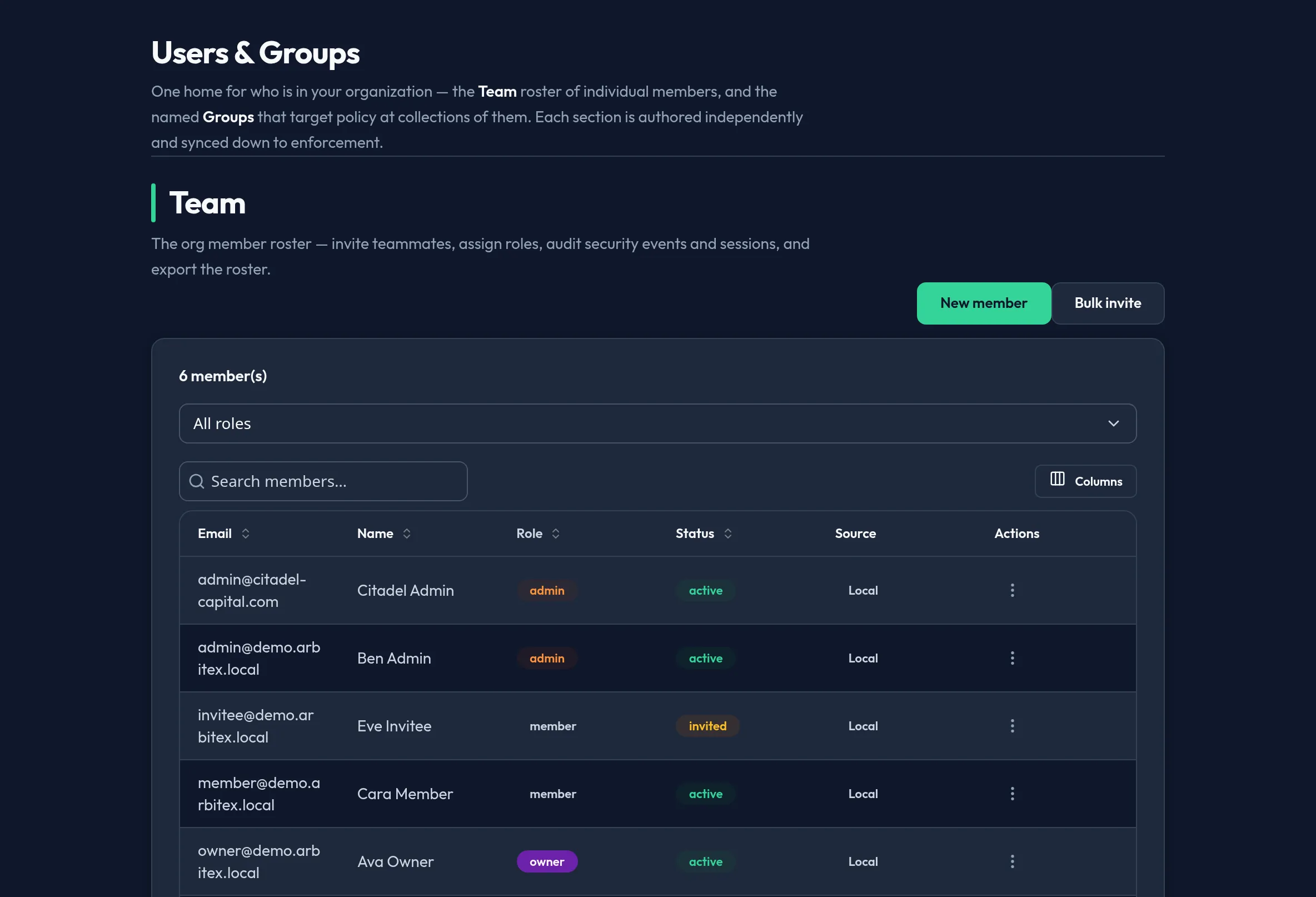
-
Open Users & Access → Users & Groups and work in the Team section.
-
For a single invite, choose New member. Enter the invitee’s email and pick the role they should receive — assign the least privilege that fits. Choose Send invite. The member appears in the roster with an Invited status.
-
To invite many at once, choose Bulk invite and paste the addresses (or upload a CSV with per-line roles). Existing members are skipped, not errored.
-
To cancel an unaccepted invitation, open the invited member’s row and choose Remove member (you can record an optional reason). The member is removed from the roster.
API equivalent
Section titled “API equivalent”Invites are authored under the Team authoring seam and require the admin
role. An invited member is created with status invited:
# invite one membercurl -X POST "https://admin.arbitex.ai/api/v1/admin/users-access/team/members/invite" \ -H "Authorization: Bearer $ADMIN_TOKEN" \ -H "Content-Type: application/json" \
# bulk-invite (existing emails are skipped, not errored)curl -X POST "https://admin.arbitex.ai/api/v1/admin/users-access/team/members/bulk-invite" \ -H "Authorization: Bearer $ADMIN_TOKEN" \ -H "Content-Type: application/json" \ -d '{"invites": [{"email": "[email protected]", "role": "member"}, {"email": "[email protected]", "role": "admin"}]}'To cancel an invite, remove the member with
POST /api/v1/admin/users-access/team/members/delete.
Plan & availability
Section titled “Plan & availability”Inviting users is available on every plan. Each active member consumes a seat; when you reach your plan’s seat count, adding members is blocked with an upgrade prompt.
Deployment notes
Section titled “Deployment notes”In an air-gapped deployment, invitation emails are not delivered automatically — coordinate credential enrolment through an approved internal channel.
Related
Section titled “Related”- Managing users — manage members after they’re added.
- Groups & roles — add members to groups.
- Entra ID / SCIM provisioning — auto-provision users instead of inviting them one by one.