

Compliance Matrix
What it does
Section titled “What it does”Compliance Matrix is a control-by-framework coverage report scoped to your enabled compliance bundles: rows are individual controls, columns are frameworks, and each cell shows whether a control is covered, partially covered, or not applicable. A CSV export captures the full control-level matrix.
Configure in the UI
Section titled “Configure in the UI”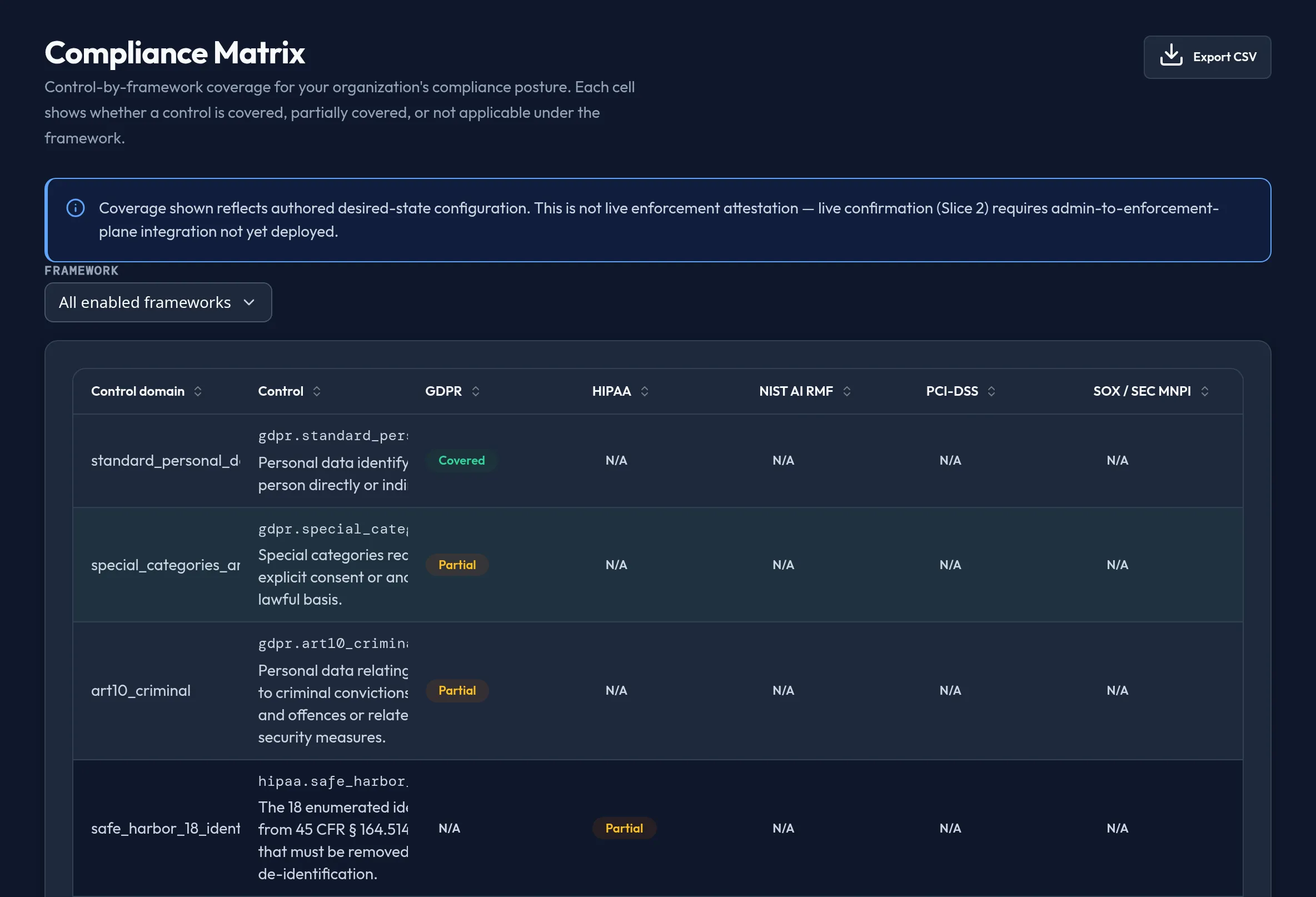
-
Open Monitoring & Reporting → Compliance Matrix. If no compliance bundle is enabled, the page shows an explicit prompt to enable one under Security & DLP → Compliance Bundles, rather than an all-N/A grid.
-
Pick a Framework filter (or “All enabled frameworks”) to scope the matrix.
-
Review each control’s coverage across the enabled frameworks — Covered / Partial / N/A — with the full control ID and name available on hover.
-
Click Export CSV to download the control-level matrix.
-
If the control-level matrix read is unavailable, the page falls back to a framework-level coverage roll-up derived from your authored compliance bundles, clearly labeled as a fallback.
API equivalent
Section titled “API equivalent”curl -X POST "https://admin.arbitex.ai/api/v1/admin/security/compliance/matrix" \ -H "Authorization: Bearer $ADMIN_TOKEN" \ -H "Content-Type: application/json" \ -d '{"template_id": "all"}'Plan & availability
Section titled “Plan & availability”Available on every plan. The matrix is scoped to your enabled compliance bundles — an org with none enabled sees an empty-state prompt instead of a grid. See Compliance Bundles.
Deployment notes
Section titled “Deployment notes”Coverage reflects authored desired-state configuration, not live enforcement attestation.