

Chain
What it does
Section titled “What it does”The Chain panel authors how your policy packs are ordered and how their
effects combine when more than one applies to the same request. It does not
author what is inside a pack — that happens on
Policy Packs. The chain always starts
with one pinned, non-terminal Routing pack at position [0] that decides
which model or provider a request goes to, followed by your DLP packs
(compliance bundles, clones, and custom packs) that apply block / redact /
log / allow to request content.
Configure in the UI
Section titled “Configure in the UI”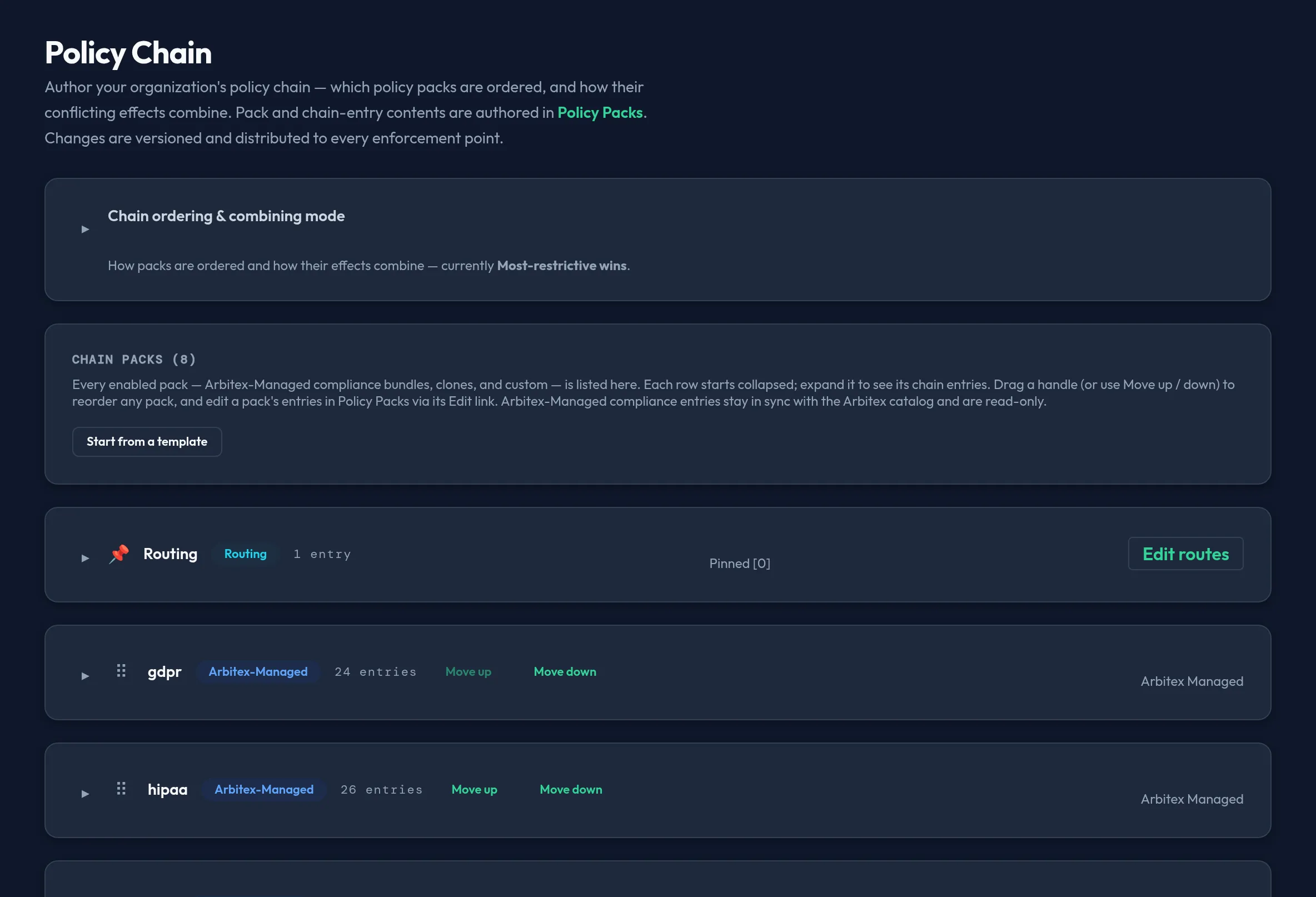
-
Open Security & DLP → Chain. The pinned Routing pack always renders first, marked
Pinned [0]— it has no drag handle, no Move up/down, and no enable switch, and no DLP pack can move above it. -
Choose the combining mode. The selector shows both options with their trade-off inline:
- Most-restrictive wins (
deny_overrides) — badged Safe default. Every applicable pack is evaluated and the strictest action wins. - First matching pack wins (
first_applicable) — the chain stops at the first pack that applies; it is faster but can under-enforce.
- Most-restrictive wins (
-
Set the default cost-routing strategy (
cheapest,balanced, orfailover) — it applies to any route in the pinned Routing pack that doesn’t set its own strategy. -
Each pack row shows its name, type (Routing / Arbitex-Managed / Custom / Cloned), entry count, and starts collapsed. Click a row to expand it and see its chain entries — detector, filters summary, and a color-coded action pill (block = red, redact = amber, log = blue, allow = green).
-
Reorder packs with the drag handle or the Move up / Move down buttons. Editable packs (custom and cloned) also let you reorder their entries the same way. Arbitex-Managed compliance packs are reorderable by position, but their entry content stays read-only and in sync with the Arbitex catalog.
-
Click Start from a template to open the folded-in chain-template library and seed the chain from a named starting point — review it and save before it takes effect.
-
Click Save policy chain once you’re done. The button stays disabled until there’s an unsaved change.
-
Use Test the chain to paste sample content and see which pack and rule would fire under the selected combining mode, evaluated against the chain above (including unsaved edits). This runs entirely in your browser — it is a client-side approximation, not the enforcement engine, and any built-in / contextual detector reads as indeterminate rather than a simulated match.
API equivalent
Section titled “API equivalent”The Chain panel and the Policy Packs panel share one control-plane resource — a save on either round-trips the other’s data untouched.
Read the current chain (packs, combining mode, and default cost-routing strategy):
curl -X POST "https://admin.arbitex.ai/api/v1/admin/security/policy/get" \ -H "Authorization: Bearer $ADMIN_TOKEN"Save the whole chain as a new revision (packs + combining mode + default cost-routing strategy — this is a full replace, not a patch):
curl -X POST "https://admin.arbitex.ai/api/v1/admin/security/policy/set" \ -H "Authorization: Bearer $ADMIN_TOKEN" \ -H "Content-Type: application/json" \ -d '{ "packs": [ ... ], "combining_algorithm": "deny_overrides", "default_cost_routing_strategy": "balanced" }'Plan & availability
Section titled “Plan & availability”Policy chain authoring is part of the core DLP feature set. A capability above your plan’s tier renders visible but disabled in the console with an upgrade prompt, rather than being hidden.
Deployment notes
Section titled “Deployment notes”Chain revisions are versioned and distributed to every enforcement point, including a Hybrid Outpost’s data plane. On an air-gapped Outpost, distribution follows your deployment’s configured update mode rather than a live push — see Outpost software updates for how updates reach an air-gapped data plane.
Related
Section titled “Related”- About DLP — the conceptual model.
- Policy Packs — author the packs the chain orders.
- Detectors — the match definitions a chain entry applies.
- Policy engine deep dive
- Enforcement chain guide