

Active sessions
What it does
Section titled “What it does”The Users & Groups surface lets you inspect a member’s active administrator sessions. Sessions are viewed per member, from that member’s User security dialog in the Team section — the same dialog that shows their auth events. Use it to spot where a member is signed in from during a security review or offboarding.
Configure in the UI
Section titled “Configure in the UI”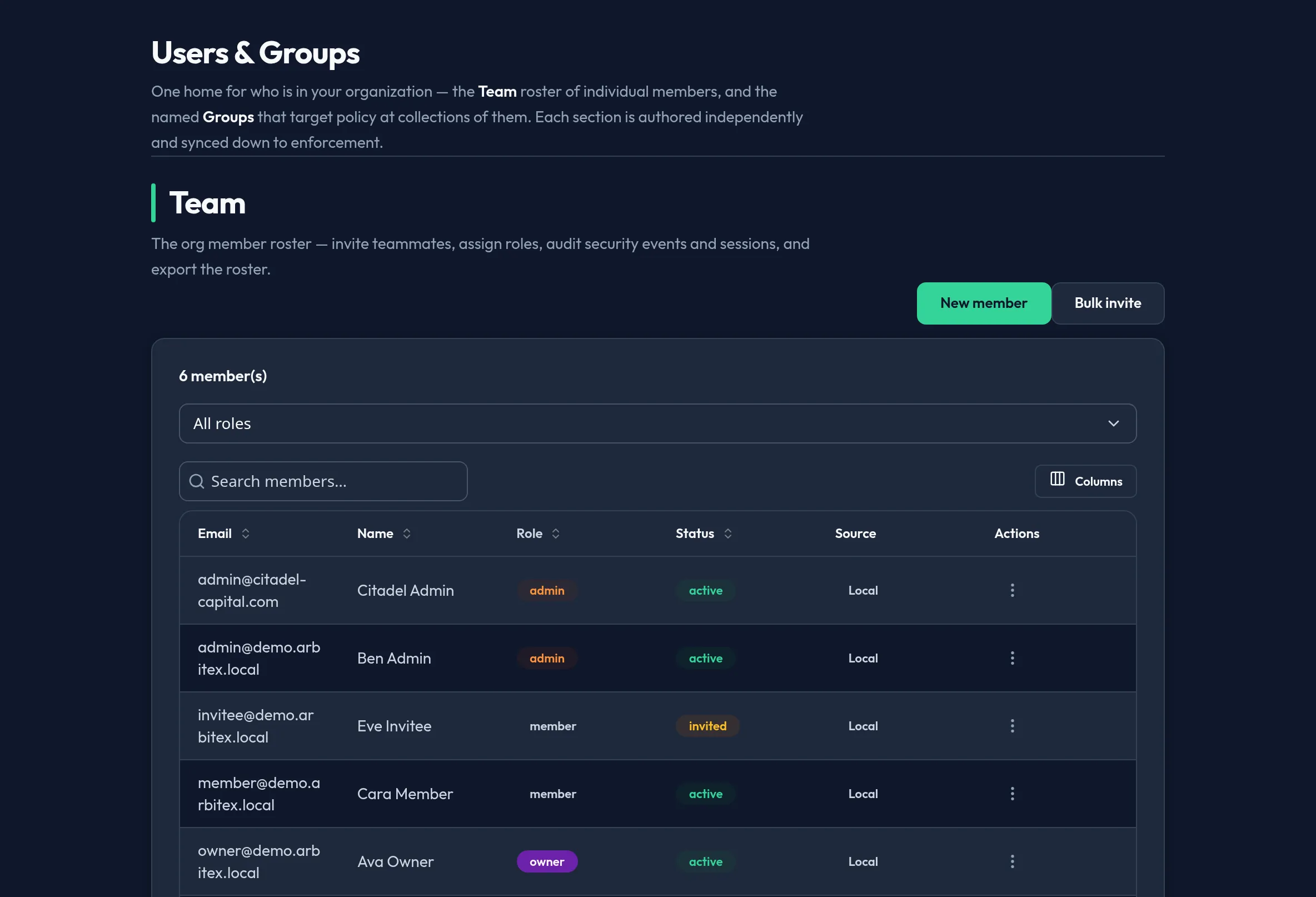
-
Open Users & Access → Users & Groups and find the member in the Team section’s roster.
-
Open that member’s User security dialog from the roster row.
-
Switch to the Active sessions tab (next to Auth events). Each active session shows the session’s IP and last-active time. If the backing is not available yet, the tab shows “Session visibility is coming soon”; if the member has none, it shows “No active sessions.”
API equivalent
Section titled “API equivalent”A member’s active sessions are read (admin role) from the Team authoring seam.
This endpoint is a stub on the shipped build — it returns an empty set with
backing_available: false until per-member session visibility lands:
curl -X POST "https://admin.arbitex.ai/api/v1/admin/users-access/team/members/sessions" \ -H "Authorization: Bearer $ADMIN_TOKEN" \ -H "Content-Type: application/json" \ -d '{"identity_id": "$MEMBER_ID"}'# → { "backing_available": false, "sessions": [] }Plan & availability
Section titled “Plan & availability”The Active sessions view is available on every plan.
Deployment notes
Section titled “Deployment notes”Session records live in the control-plane database. On a Hybrid Outpost, admin sessions are tracked by the customer-managed control plane.
Related
Section titled “Related”- Session management reference — the session and token model behind this view.
- MFA setup & enforcement
- Managing users — deactivate or remove a compromised account.